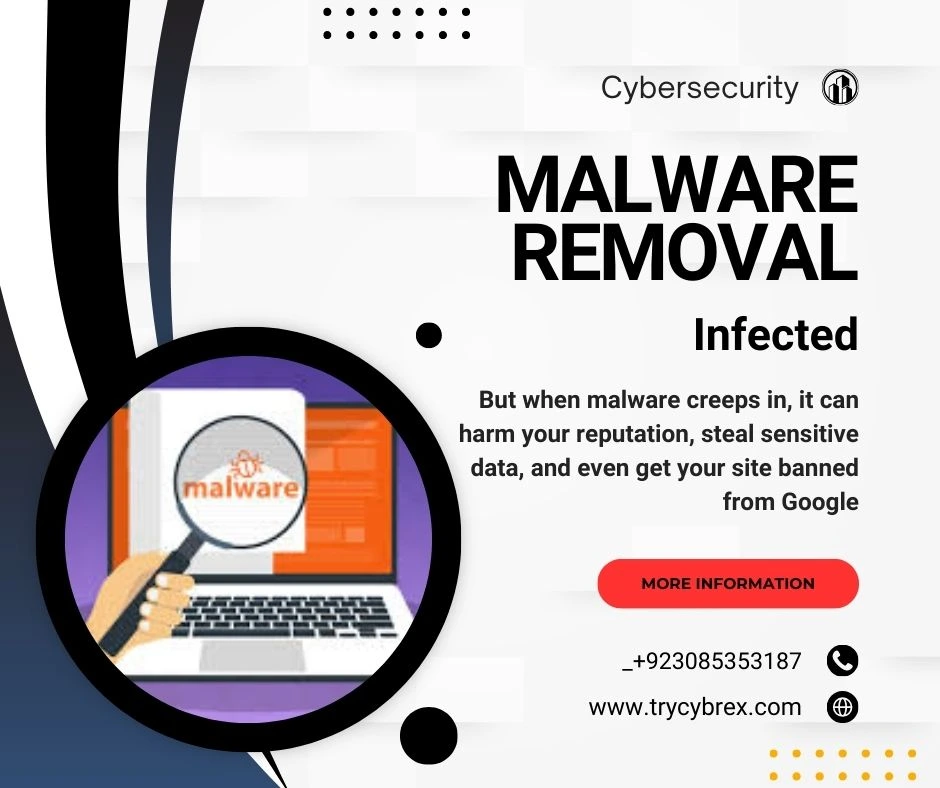
Malware removal is crucial in 2025 as WordPress continues to dominate the web, powering over 40% of all websites. With popularity, however, comes vulnerability. As threats become more sophisticated, securing your WordPress website through effective virus removal and regular malware scans is no longer optional it’s essential.In this guide, we’ll walk you through the steps to protect your site, remove malware, and harden it against future attacks.
Why Malware Removal Matters for Targeted WordPress Sites
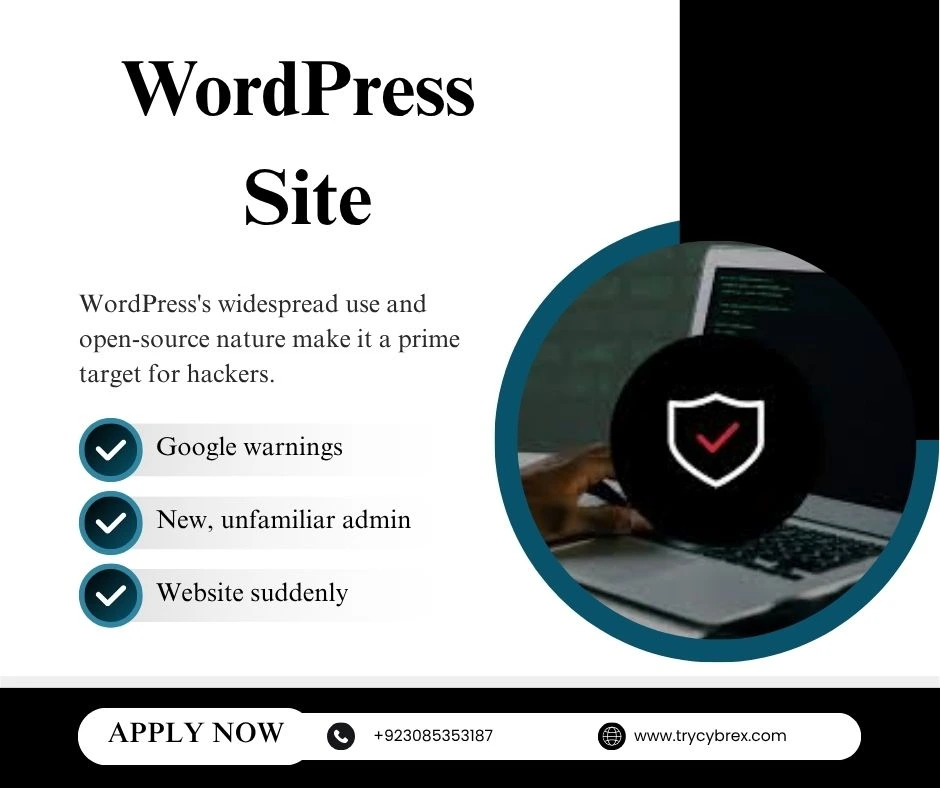
WordPress’s widespread use and open-source nature make it a prime target for hackers. Common vulnerabilities include outdated plugins, weak passwords, and poorly secured themes. Using reliable anti-malware software and free antivirus tools can help protect your website from these threats and keep your WordPress site secure.
Signs Your WordPress Site Has Been Hacked
- Unexpected redirects to other websites
- New, unfamiliar admin users
- Spam content appearing in posts or pages
- Website suddenly slow or unresponsive
- Google warnings or blacklisting
If you see any of these, act fast.
Step-by-Step Security Hardening
1. Update Everything
Keep WordPress core, themes, and plugins up to date.
2. Use Strong Credentials
For effective Malware Removal, avoid using ‘admin’ as a username, set strong passwords, enable two-factor authentication, and install reliable security software to provide an additional layer of protection against threats.
3. Install a Security Plugin
Use plugins like Wordfence, iThemes Security, or Sucuri to monitor and block threats.
4. Limit Login Attempts
Malware Removal goes hand-in-hand with protecting against brute-force attacks by limiting login attempts or adding a CAPTCHA.
5. Change WP-Admin and Login URLs
Custom login URLs reduce bot and brute force attacks.
6. Disable File Editing
In wp-config.php, add:
define('DISALLOW_FILE_EDIT', true);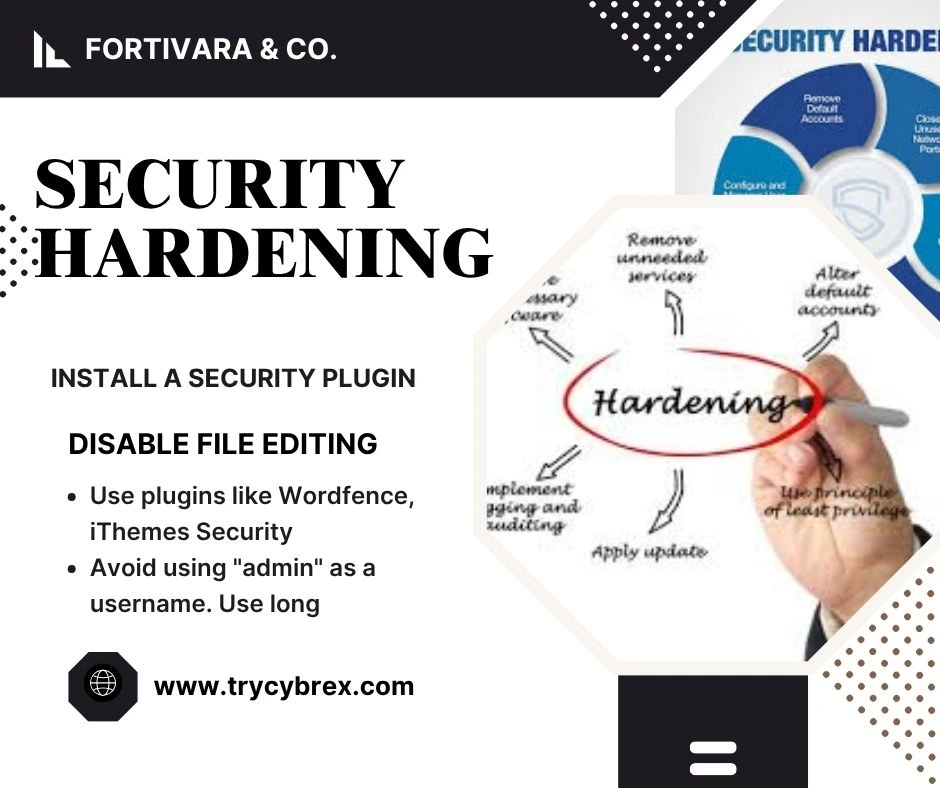
How to Remove Malware from a WordPress Site
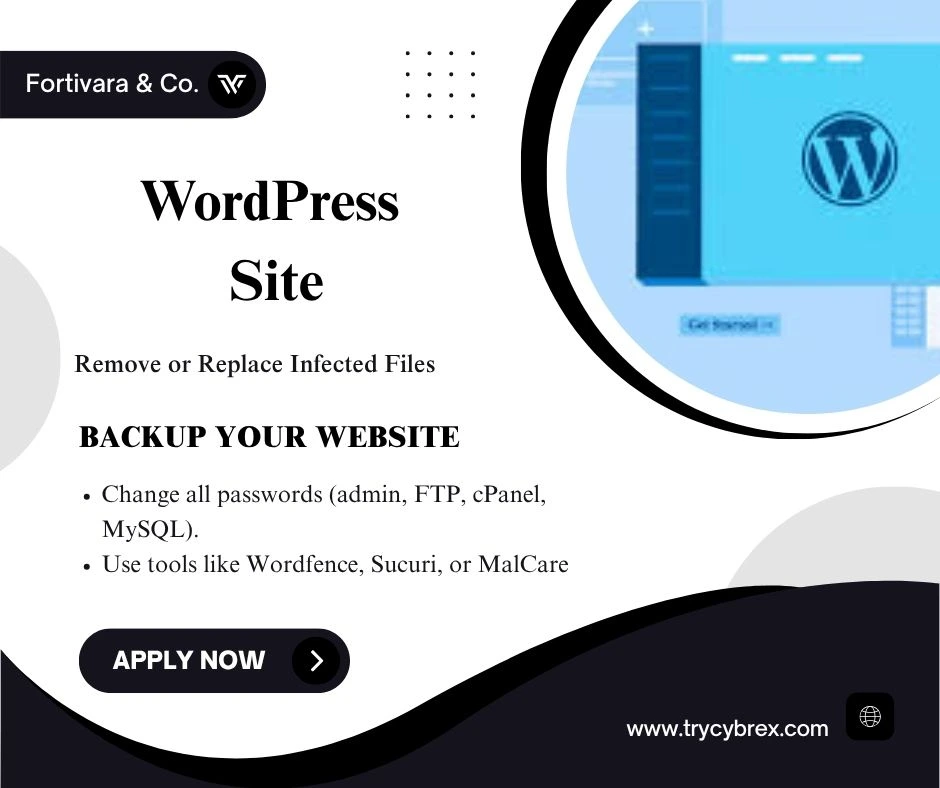
Step 1: Backup Your Website
Always backup files and the database before making changes.
Step 2: Scan for Malware
Use tools like Wordfence, Sucuri, or MalCare to scan and identify malicious files.
Step 3: Remove or Replace Infected Files
Malware Removal often involves manually deleting malicious code or replacing infected files with clean versions. Implementing strong virus protection and anti-malware software can help prevent these infections from occurring in the first place.
Step 4: Reset Passwords & Update Access
Change all passwords (admin, FTP, cPanel, MySQL).
Step 5: Submit for Google Review
If your site was blacklisted, request a security review through Google Search Console.
Long-Term Protection: Set It and Monitor It
- Firewall Monitoring: Use Cloudflare or Sucuri for real-time protection.
- Uptime Monitoring: Use tools like UptimeRobot to know when your site is down.
- Regular Security Audits: Perform monthly scans and reviews.
Final Thoughts
Securing your WordPress website is not just a one-time task it’s an ongoing responsibility. Whether you’re a freelancer, agency, or business owner, regular maintenance, malware protection, and antivirus scans are key to staying ahead of hackers. Want professional help?Hire a WordPress security expert to lock down your site, clean infections, and give you peace of mind.